Audio availability
If the result says No audio provided, that download has no audio track. Music heard in the app may be unavailable.
 Toolsat Once.

Paste an Instagram Reel link and choose a quality to download.
Paste a video link to get started.
Connecting to the video…
Preview unavailable. Try downloading the video.
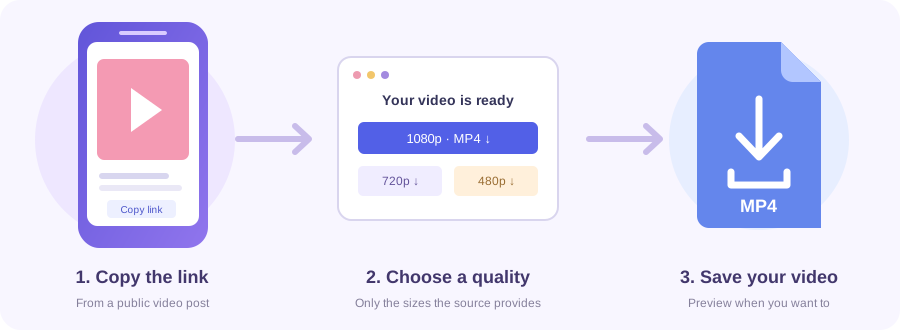
Open the public video on Instagram Reels and copy its share link.
Paste the link above and choose Get Reel.
Choose Download MP4 beside a quality, or Download video for a prepared file. Supported iPhones also offer Save to Photos.
Paste a public Instagram Reel link and choose an available MP4 quality. For feed posts or older /tv/ links, use Instagram Video Downloader.
A portrait Reel may offer a 720 × 1280 file alongside a smaller option.
If the result says No audio provided, that download has no audio track. Music heard in the app may be unavailable.
Tools at Once adds no watermark. Captions and watermarks already in the Reel remain.
Download the Reel as an MP4. Separate music or voice downloads are not available.
Swipe or scroll sideways to see every column →
| What you have | Where to use it |
|---|---|
| One public /reel/ or /reels/ link | Paste it on this page. |
| A /p/ feed post or /tv/ video | Use Instagram Video Downloader. |
| An account profile or a Story link | Not supported by this Reel tool. |
| A collection of Reels | Process individual Reel links; there is no profile or bulk-download mode. |
Tap Save to Photos, then choose Save Video if offered. Use Download to Files for videos over 25 MB or when Photos sharing is unavailable.
Tap Download MP4 and find the file in Downloads or your file manager.
Choose Download MP4, then open your browser’s download list.
Paste a /reel/ or /reels/ link copied from Share. Use Instagram Video Downloader for feed posts and /tv/ links.
Portrait quality labels use the shorter dimension. Check the full dimensions shown beside the quality.
When audio is available, yes. No audio provided means that download has no audio track, even if the app plays music.
Tools at Once adds no watermark. Existing watermarks, logos and captions remain.
No. Paste one Reel link at a time.
Choose Save to Photos, then Save Video if offered. Files downloads are in Files > Downloads.
A Reel can be deleted, restricted or temporarily unavailable. Check its link, or try again later.
On supported iPhones, tap Save to Photos and choose Save Video if offered. For videos over 25 MB or unavailable sharing, use Download to Files. If prompted, tap Save to Photos again.